TPV GestioERP
The GestioERP POS in Odoo for PDA, tablet, Windows and web: barcode reader, sizes and colours, modifiers, mixed payment, parked receipts and tables, X report and Z closing, refunds and offline mode (with the local server); it saves into the Odoo POS.

▶ In motion: a sale at the POS, step by step.
- Open cash register: the session opens with the money that is in the drawer.
- Sell: tap the products or read them with the reader.
- Collect: cash, card or several methods at once.
- Ticket: it is printed or sent; if needed, invoice it.
- Closing: cash count and closing of the session at the end.
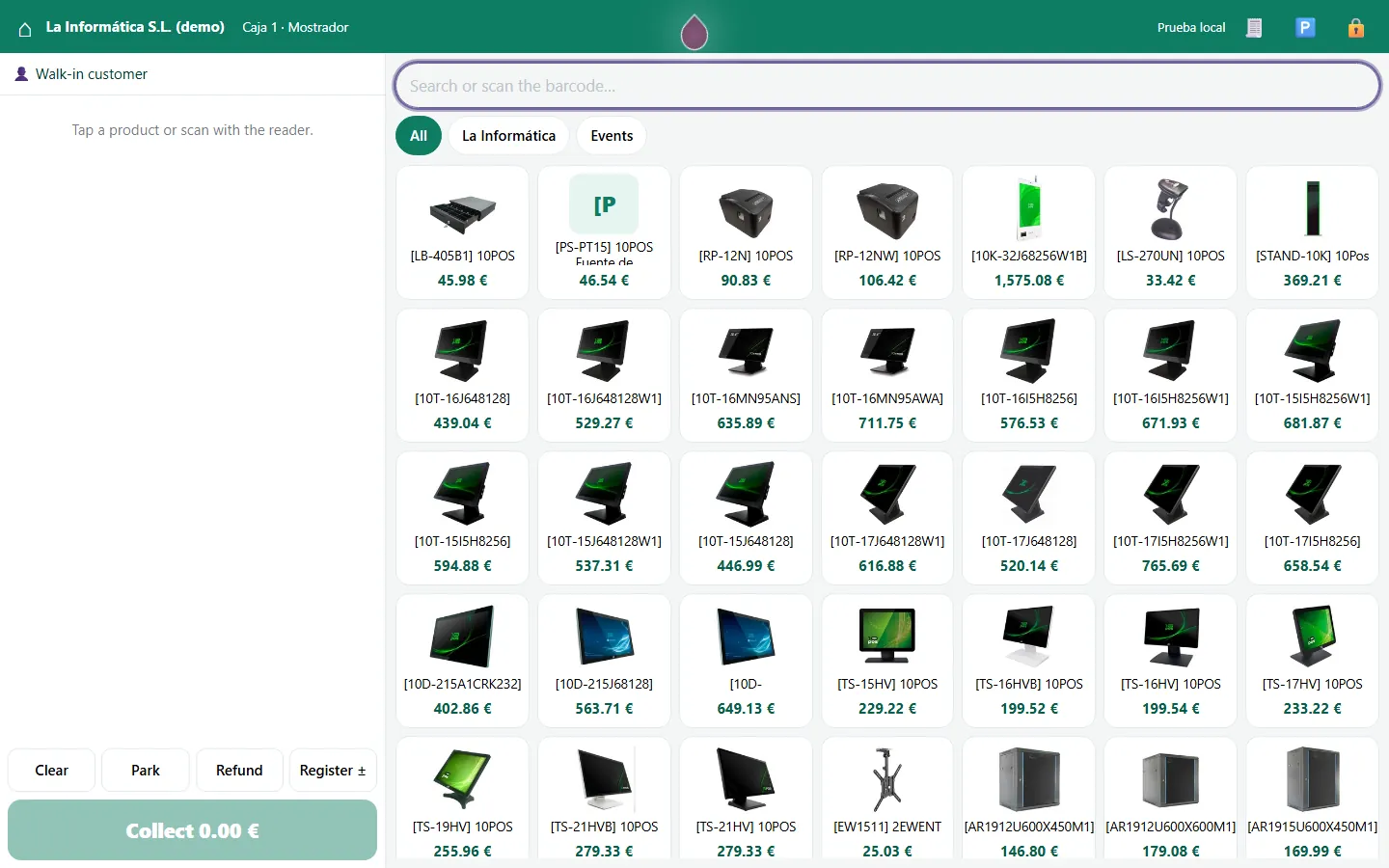
1. Sales screen
Tap a product or pass the reader.

▶ In motion: sales screen, point by point.
- 1Search box and families.
- 2The receipt lines (quantity, discount, price with VAT).
- 3Tap to add.
- 4Park or table, return, cash in/out and Z close.
- 5Total and collect (cash, card or mixed, with change).
2. Open the cash register
«Open the till».
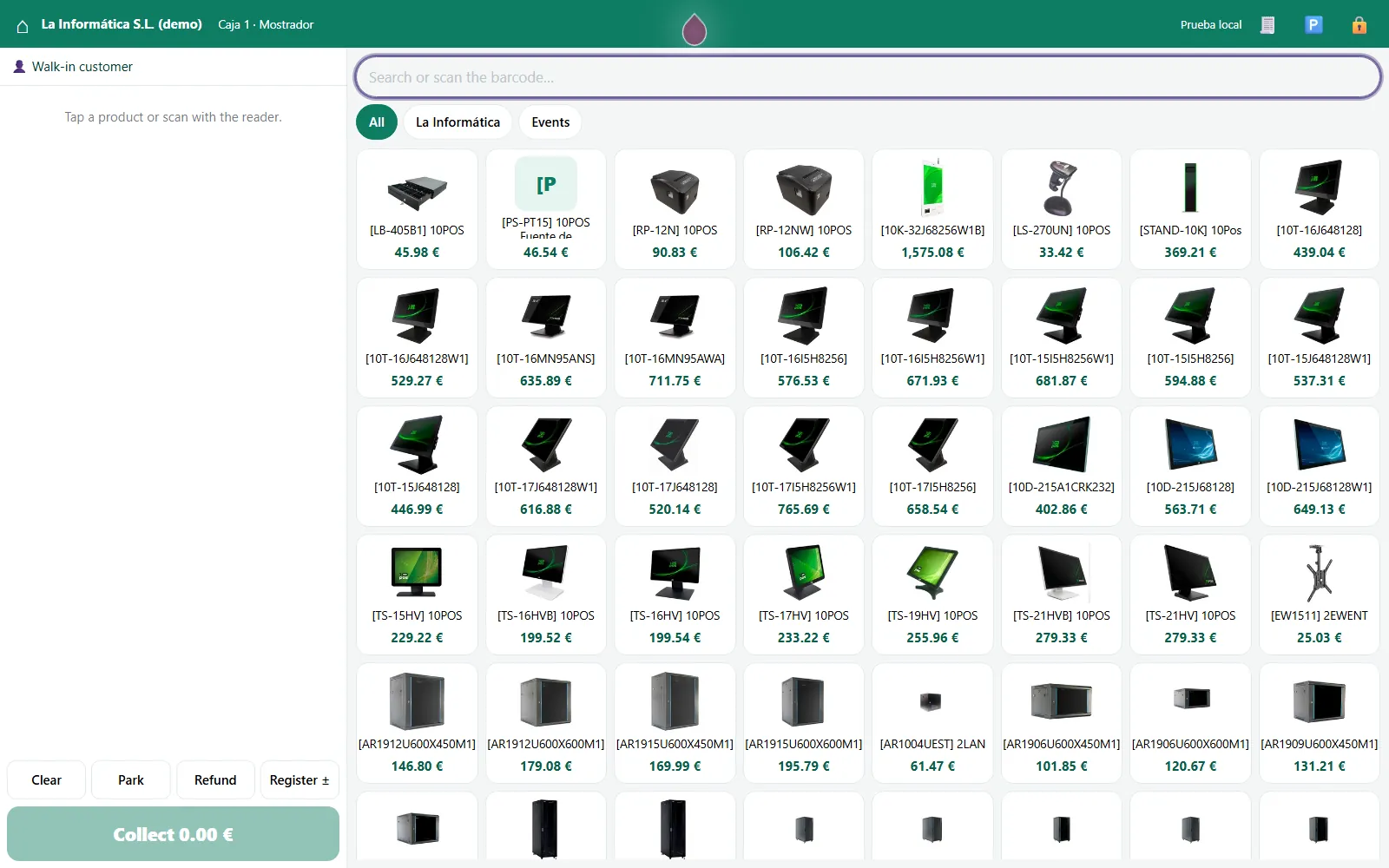
3. Collect a ticket
«Cobrar»: efectivo (con lo entregado y el cambio), tarjeta o mixto; «Imprimir ticket»; «🎁 Ticket regalo» lo saca sin precios para cambios (también desde «Ventas y facturas»).
4. Park a ticket
«Park».
5. A return at the POS
«Refund».
6. The cash register closing
En «Arqueo y cierre», «Imprimir X» saca cómo va el día sin cerrar. «Cerrar la caja (Z)»: cuenta el efectivo, ves lo que falta o sobra y, al cerrar, sale la Z (tickets, formas de pago, impuestos, familias, movimientos y efectivo) por la impresora de tickets o en PDF. Con varios cajeros, sale también lo vendido por cada uno.
7. Cash in or out of the register
«Cash ±».
8. The code reader
Scan the barcode.
9. The discount on the ticket
En la línea, «Descuento %» y «Aplicar». Para todo el ticket, «Dto. %»: el mismo descuento en cada línea (botones de 5, 10, 15, 20 y 50 %, o «Quitar»). Hace falta el permiso de descuentos.
10. The offline POS
If the connection drops, «Offline» shows and it keeps selling: the POS keeps the items, tables and sales queue on the device and uploads them when back. With GestioERP for Windows on the till PC, that PC acts as the local server: «Offline · local server» shows and the tablets carry on with tables, kitchen and payments.
11. The POS by type of business
Enabled per company.
12. Sizes and colours
An item with variants appears once in the catalogue («from» its price). Tapping it opens the table: colours in rows and sizes in columns; tap the cell and it goes to the receipt. The barcode reader adds the variant directly.
13. Modifiers
If the item has modifiers (meat doneness, extras, type of milk…), you choose them when tapping it and the price adds the extras. The line shows as «Burger (Rare, Cheese)» on the receipt, in the kitchen and on the printed order. They are set on the item as «no variant» attributes with their extra price.
14. The local server
When the POS is opened on the till PC with GestioERP for Windows, that PC registers as the local server and downloads what it needs. If the internet goes down, the tablets (GERP ODOO POS app) talk to it over the local network; orders print on each area's printer and, when the connection returns, everything is uploaded to Odoo without duplicates. Windows asks for network permission the first time: allow it on private networks.
15. The POS on tablet and Windows
The GERP ODOO POS app (Android) and GestioERP for Windows open the POS full screen and keep it to open offline. Download them at gerpodoo.com/descargas. In the browser: /gerp/tpv (also /gerp/cocina and /gerp/recogida).
16. Vales, tarjetas regalo y puntos
Con «TPV GestioERP: vales, tarjetas regalo y puntos» el TPV usa los programas de Cupones y fidelización de Odoo (Ventas › Promociones y puntos, y Tarjetas regalo y monedero). «Tarjeta regalo» la vende a importe libre y el código sale en el ticket; «Vale / tarjeta» lee el código de una tarjeta regalo (paga con su saldo), de un vale o de una promoción; con el cliente elegido, sus puntos salen junto a su nombre para canjearlos. Se da o se quita en Usuarios internos › TPV › «Vales, tarjetas regalo y puntos».
Frequently asked questions
How do I open the till?
«Open the till».
How do I take a payment?
«Pay».
How do I park a ticket for later?
«Park».
How do I refund a ticket?
«Refund».
How do I close the till?
«Close the till (Z)».
How do I take money out?
«Cash ±».
How do I sell with the scanner?
Scan the barcode.
How do I apply a discount?
«Discount %».
How do I sell offline?
«Offline».
How do I enable the POS?
Enabled per company.
Why can't I see TPV GestioERP?
If you can't see it, your internal user lacks the «tpv» permission: the administrator grants it in Home › Internal users.
How do I sell a size and colour?
Tap the item: the colour-by-size table opens and you tap the cell.
How do I add rare or an extra?
When you tap the item you choose its modifiers and the price adds the extras. They are set on the item as no-variant attributes.
How do I print the X report?
In «Count and closing», «Print X»; the Z prints when you close the till.
What happens if the internet goes down?
The POS keeps selling with what it has saved. With GestioERP for Windows on the till PC, that PC serves the tablets (tables, kitchen, payments) and uploads everything when back online.
How do I invoice a ticket?
In the POS, «Sales and invoices»: find the receipt (by number or customer, any day), «Invoice it» and choose the customer (with tax ID). ✉ emails the receipt, and the invoice if there is one.
How do I put a sale on account?
Add a «Customer account» payment method to the till (for example «On account»). In the POS choose the customer and charge with it: it stays pending on their account and is collected later in Collections portfolio. When choosing a customer you see what they owe.
How do I sell by weight?
Mark the item «To weigh» (in kg): tapping it in the POS asks for the weight. Scale labels are read with the scanner: «21» + 5 item digits + the weight, or «23» + 5 digits + the price; the item's barcode is the label's with the weight as zeros. To sell by grams, set 3 decimals on «Product Unit».
Does the POS apply the customer's pricelist?
Yes, if their pricelist is one of the till's pricelists (Till settings › Pricelists): when you choose the customer, the receipt switches to their prices and the pricelist name shows next to the customer.
How do I print a gift receipt?
When charging, “🎁 Gift receipt”; or in “Sales and invoices”, the 🎁 button of the sale. It prints the items without prices or payment methods, so the gift can be exchanged.
How do I discount the whole receipt?
With “Disc. %” next to “Park”: enter the percentage (or tap 5, 10, 15, 20 or 50 %) and “Apply”; it goes on every sold line. “Remove” sets it back to 0. It needs the discounts permission.
Can I create a customer from the POS?
Yes: in “Customer”, “+ New”; enter name, tax ID, phone and email and “Save and choose”. It is set on the receipt (or the invoice). If a customer with that tax ID already exists, that one is chosen instead of a duplicate.
How do I charge something that is not in the catalogue?
With “Miscellaneous”: enter a description (optional), the amount including tax and the right tax, and “Add”. It goes on the receipt as one more line and is saved with the company's “Miscellaneous” item (outside the POS catalogue). It does not need the change-prices permission.
How do I change cashier in the POS?
Turn on “Log in with employees” in the Odoo POS till settings and add the employees with their level (and their PIN on the employee record). The POS asks “Who is selling?”; tap the name at the top to change. Each sale is recorded under their name. Restricted or supervised levels cannot apply discounts, refunds or cancellations. It also works offline.
How do I check an item's stock in the POS?
Tap “ⓘ” next to the search box and then the item: you see its price, reference, barcode and the stock in each of the company's warehouses (with sizes and colours, per variant). It is not added to the receipt; “Add to receipt” sells it. Tap “ⓘ” again to keep selling. It needs a connection.
How do I open the drawer from the POS?
The drawer is connected to the receipt printer and opens through GestioERP for Windows direct printing: with the “Drawer” button (needs the cash movements permission) and by itself on cash payments if the till has “Open the drawer on cash payments” ticked. Offline, open it with the key.
How do I reprint the last receipt?
With “⎙” at the top: it prints again the last receipt charged on that device. Older ones, in “Sales and invoices” (🧾), “Receipt” button.
How do I add a tip in the POS?
Turn on “Tips” in the Odoo POS till settings (with its tip product). When charging you get “Tip”: 5 %, 10 %, “Round up” to the next euro or “Typed” (the amount you typed). It goes on the receipt as a line and is charged with the rest; “Remove” deletes it.
How do I add several units at once?
Type the quantity and an asterisk in the search box (“12*”, “12x” also works) and then tap the item or scan it: it goes in with that quantity. On the receipt, tap a line's quantity to type it (also with the computer keyboard and Enter).
Where are my best-selling items?
In the “★ Best sellers” family, next to “All”: the items that till has sold most in the last 60 days, from most to least sold. It updates by itself.
How do I add a note to the receipt?
With “Note” (next to “Miscellaneous”): type the text (pick up on Tuesday, warranty…) and “Save”. It shows under the customer and, when charged, printed at the foot of the receipt. It is kept if you park the receipt.
What keyboard shortcuts does the POS have?
Press F1 (or “⌨” at the top) in the POS to see them: F2 search, F3 check price and stock, F4 customer, F6 park, F7 parked and tables, F8 sales and invoices, F9 charge, Esc close and “3*” in the search box for the quantity.
How do I set up a customer display?
On the till PC, tap “🖥” at the top of the POS: the customer display opens (also at /gerp/tpv/cliente); move it to the second monitor and make it full screen (F11). It shows what is being rung up and the total, and on payment “Thank you!” with the change. It runs in the same browser as the POS.
How do I sell a gift card in the POS?
Tap “Gift card”, enter the amount (or a 10, 20, 50… button) and, for a printed card, its code; it goes on the receipt as a line and is paid as usual. On payment Odoo creates the card with that balance and the receipt carries its code and barcode. It needs the “GestioERP POS: vouchers, gift cards and points” module and a gift card program (Sales › Gift cards and eWallet).
How do I take payment with a gift card?
Tap “Voucher / card” and scan or type the code: its balance and the amount to pay show (what is due, or what is left on it); tap “Apply”. It goes on the receipt as a negative line and the rest is paid as usual. On payment it is taken off the balance (the receipt shows what is left); if the receipt is refunded, the balance goes back to the card.
How do I apply a voucher or promo code in the POS?
“Voucher / card”, scan the voucher code or type the promotion's and tap “Apply” on its discount. The server works the discount out with Odoo's rules (percentage, fixed amount, cheapest item, specific products) and it is recalculated when the receipt changes. A single-use voucher is spent on payment. The till's promotions that need no code are listed below too.
How do customer points work in the POS?
With a points program (Sales › Promotions and points), customers earn them just by being chosen on the receipt (per euro, per purchase or per unit, as set up). “⭐ 120 points” shows next to their name: tap it to see their rewards and “Redeem” one they can afford. With an eWallet, its balance shows and “Pay with the eWallet”; it is topped up with “Gift card” › eWallet. The receipt shows the points earned and the balance.
How do I refund with a voucher instead of money?
Do the refund as usual (“Refund”) and, when paying it out, tap “🎁 Refund as a voucher”: the receipt goes to 0 and a gift card is created for the refunded amount, with its code on the receipt; it is spent later with “Voucher / card”. With a customer who has an eWallet, “To the customer's eWallet” shows too. If the refunded receipt had points redeemed or earned, Odoo gives them back and takes them off in proportion.
How do I set up an automatic promotion in the POS?
Create it in Sales › Promotions and points as a “Promotion” (no code): for example 5% from €50, or a free item when buying another. In the POS it is added to the receipt as soon as it applies (“🎟 Automatic promotion”) and removed if it stops applying. If the cashier removes it with ×, it does not come back on that receipt; it can be added again from “Voucher / card” › Till promotions.
Can I scan the customer's card with the barcode reader?
Yes: scan the card in the product search box, like a product. If the code belongs to a customer's points card or eWallet, the receipt becomes theirs and their rewards show; if it is a gift card, voucher or promo code, its window opens to apply it. If it matches nothing, it stays as a search without any warning.
The GestioERP POS in Odoo for PDA, tablet, Windows and web: barcode reader, sizes and colours, modifiers, mixed payment, parked receipts and tables, X report and Z closing, refunds and offline mode (with the local server); it saves into the Odoo POS.
There are no comments for now.
to be the first to leave a comment.