Labels (product, shelf and traceability)
Visual label designer with roll or A4 sheet formats, product labels, shelf labels with previous price, traceability labels (lot, serial and expiry) and shipping labels; they are printed from products, delivery notes, invoices and lots, as PDF or directly to a Zebra, Godex or TSC roll (ZPL, TSPL) over the network, with a job history.
Video course with Ximena and Marc
Press «Empezar» (Start) and turn the volume up: they show you with voice-over and subtitles (in Spanish), in about 3 minutes.
Open full screen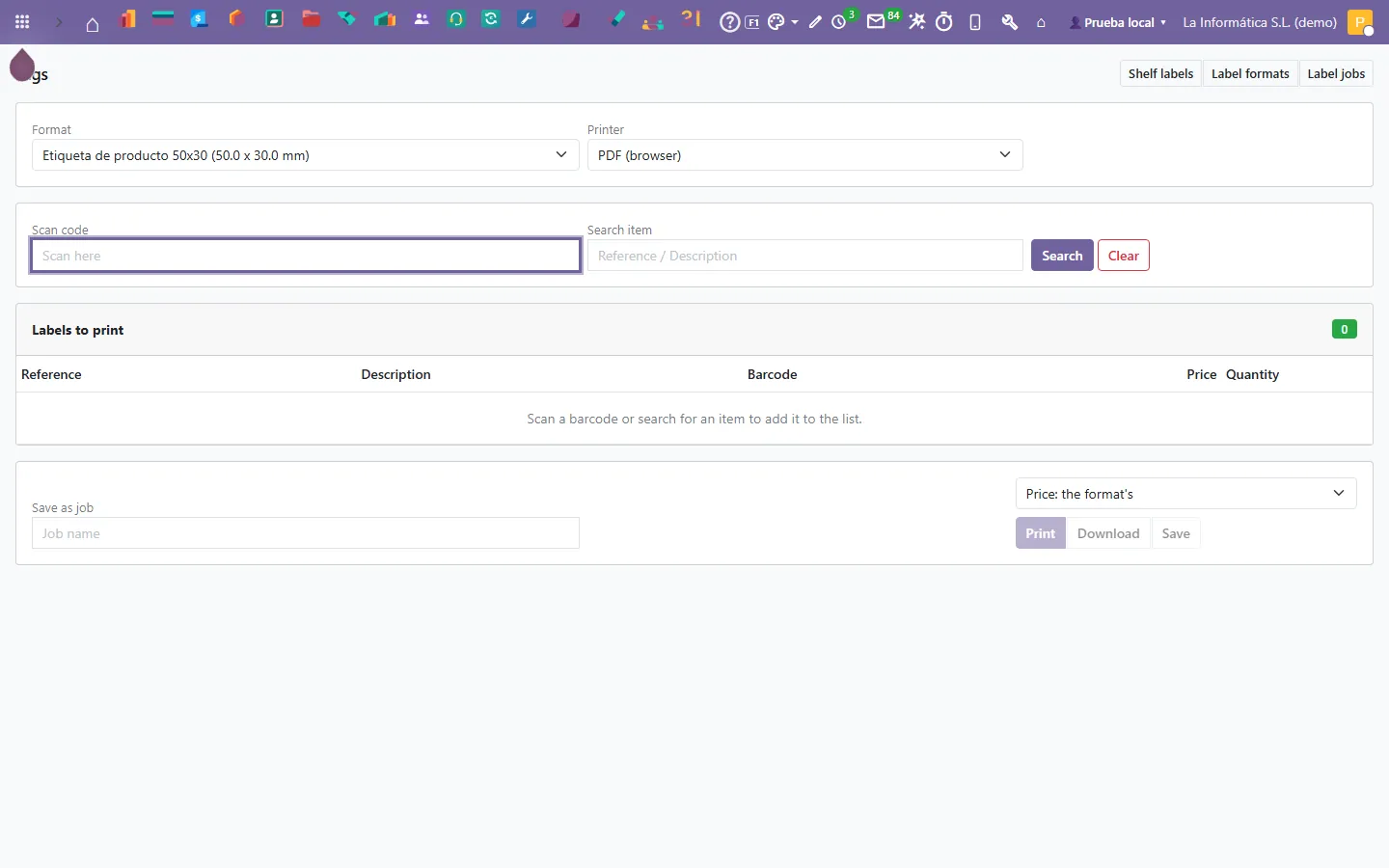
1. What it is and where it is
GestioERP Labels prints product labels, shelf labels (with previous price), traceability labels (lot, serial and expiry) and shipping labels, with a visual designer where you drag each element. They come out as PDF for any printer or directly to a Zebra, Godex or TSC roll printer over the network. It is in the dropdown Warehouse › Labels.

▶ In motion: what it is and where it is, point by point.
- 1Label design opens the default format directly on the designer tab; if there is none, it creates a 50 x 30 mm one.
- 2The three screens for printing: product («Labels»), shelf with previous price and traceability of lots and serial numbers.
- 3The formats: size, barcode, what is printed and the design of each label. When the module is installed, 10 sample ones are already included.
- 4The jobs: every time you print, download or save, a job is left with its labels, so you can repeat it whenever you want.
- 5The roll printers (only Warehouse administrators): IP address, language and resolution.
How it is done
- Open the Warehouse dropdown and choose Labels.
- For a single label, go to Labels, choose a format, search for the product and press Print.
- To change the look, go to Label design.
2. Print product labels
The main screen, with three blocks: which format and printer to use, which products to include and the list of labels to be printed with their quantity.

▶ In motion: print product labels, point by point.
- 1Choose the format (with its dimensions) and the printer; if you do not choose, a PDF comes out through the browser. On A4 sheets you can indicate the row and column to start from, to make use of a sheet that is already started.
- 2Scan the barcode (or type the reference) and the product is added by itself; if the code belongs to a lot or serial number, it is added with its lot.
- 3Search by name, reference or barcode and press Search: up to 40 products appear to add. Clear leaves the list blank.
- 4The list of labels: each line has reference, description, barcode, price and the number of labels you want for that product.
- 5The job name and the price that is printed: the one of the format, with VAT, without VAT or no price.
- 6Print (on a network roll printer it is called «Print on the roll» and goes out directly), Download the file or just Save the job.
How it is done
- Choose the format and the printer.
- Scan or search for the products and adjust the quantity of each one.
- Choose the price (with VAT, without VAT, no price or the one of the format).
- Press Print.
3. Label formats
A format says what the label is like: type, size, barcode and what data it carries. Each format has four tabs: Format, Designer, Preview and Printer code.

▶ In motion: label formats, point by point.
- 1Test label prints one with sample data; Automatic layout stacks the checked boxes; Shelf layout places the shelf label.
- 2Type: product, linear, shipment or traceability. Mode: roll (one label per page) or A4 sheet (grid). With «Default» that format is chosen for its type.
- 3The four tabs: the settings, the visual designer, the label at real size and the ZPL or TSPL code that would be sent to the printer.
- 4Measurements: width, height, margin and font size in mm and points. On an A4 sheet, columns, rows, spacing and sheet margin also appear.
- 5Symbology (Code 128, Code 39, EAN-13, EAN-8, UPC-A, ITF-14, GS1-128, QR or Data Matrix), bar width and height and whether the number is printed below.
- 6What is printed: reference, description, price (with or without VAT), price per unit, offer and free text. And the printer: language (PDF, ZPL or TSPL), resolution, paper type, speed and darkness.
How it is done
- Go to Label formats and press New (or open one of the examples and duplicate it).
- Fill in name, type and dimensions; if it is an APLI sticker sheet, use «Known dimensions» in the designer.
- Choose the symbology and check which data you want.
- Press Test label to see it printed.
4. Visual designer
In the Designer tab you see the label with its real dimensions and place each element by dragging it. What you draw is what comes out in the PDF and on the roll printer.

▶ In motion: visual designer, point by point.
- 1A row of buttons to add elements: reference, description, price, previous price, price per unit, code symbol, barcode as text, lot, company, date and free text.
- 2Known measurements: you choose the pack reference (rolls from 30x20 to 100x150, or APLI sheets) and «Apply measurements» fills in size, columns, rows and margins.
- 3The canvas is the label to scale. Drag to move and pull the corner to resize. The keyboard arrows move the selected element 0.1 mm (with Shift, 1 mm).
- 4The panel of the selected element: position, width, height (in the code), font size, alignment, rotation, the fixed text or the text in front (for example «Serial no.:»).
- 5Bold, strikethrough (for the previous price) and inverted; center horizontally or vertically, fill the full width, duplicate or remove the element.
How it is done
- Open the format and go to Designer (or go through Warehouse › Labels › Label design).
- Press the + buttons to add the elements you want.
- Drag them into place and adjust the font size.
- Look at the Preview tab and save.
Keyboard
| ← → ↑ ↓ | Move the element 0.1 mm |
| Shift + arrows | Move the element 1 mm |
5. Shelf labels
The shelf label: large description, very visible price, previous price crossed out if on sale, price per unit and barcode. One is printed per product or for a whole family.

▶ In motion: shelf labels, point by point.
- 1Choose a linear-type format, such as «Shelf label 60x40» or «Wide shelf 100x30», and the printer.
- 2The Family filter appears only on this screen. «Whole family» loads all the products of the chosen family at once.
- 3The list is the same as in product: adjust the quantity, remove lines or add individual products.
- 4It is printed, downloaded or saved just like the product ones.
How it is done
- Create or choose a shelf label format and enable «Oferta» and «Precio por unidad» if you want them.
- In Shelf labels choose the family and press Whole family.
- Press Print.
6. Traceability labels
Labels with lot or serial number and expiry date, for food, cosmetics or any product with tracking. They come from the Traceability screen or from the record of a lot.

▶ In motion: traceability labels, point by point.
- 1Choose a traceability-type format: the example «Lot and expiry 60x40» carries description, «Lot:», «Exp.:» and the code.
- 2Each line brings the lot and, if the lot has an expiry date in Odoo, that date; if not, today's. The barcode is the lot name.
- 3When you scan a lot or serial code, the product is added with that lot. It is printed like any other job.
How it is done
- Open Inventory › Lots and serial numbers, select the lots and choose Actions › Traceability labels.
- Check the lot and date of each line and the quantities.
- Press Print.
7. Print jobs
Every time you print, download or save, a job is left with its lines. It serves as a history and to repeat the same job without searching for the products again.

▶ In motion: print jobs, point by point.
- 1Print sends the labels; View PDF opens them in another tab; Download downloads the PDF or, with a ZPL/TSPL printer, the command file.
- 2The status: Saved (not printed yet), Printed or With error (the network printer did not respond).
- 3The job details: type, format, printer, which price is shown and, on A4 sheets, from which row and column to start.
- 4The lines can be edited and reordered with the handle; optional columns for lot, price without VAT, previous price and price per unit.
How it is done
- Go to Label jobs and open one.
- Change quantities if needed.
- Press Print to repeat it.
8. Label printers: PDF and network roll
There are three ways to output the label. Through the browser: a PDF with one page the size of the label, which you print with the Windows driver (any brand works). Over the network: ZPL (Zebra, Godex) or TSPL (TSC) sent raw to the IP and port of the roll printer, with no dialog. Download the file.

▶ In motion: label printers: PDF and network roll, point by point.
- 1Test print sends a test label with the printer's usual format (or the first one available).
- 2Language: HTML/PDF for any brand, ZPL for Zebra and Godex, TSPL for TSC; and the resolution (152, 203, 300 or 600 dpi).
- 3Connection: through the browser, over the network (the IP and port are asked for, almost always 9100) or download the file.
How it is done
- Go to Label printers (you need to be a Warehouse manager) and press New.
- Enter the name, language and resolution of your printer.
- If it is a network roll printer, choose «Over the network» and enter the IP and port.
- Press Test print.
- Tick «Default» so that it comes out already selected.
9. Print from products, delivery notes, invoices and lots
In the lists and records of products, variants, delivery notes, invoices and lots there is the «Print labels» action in the Actions menu: it opens the labels screen with the lines already loaded.

▶ In motion: print from products, delivery notes, invoices and lots, point by point.
- 1Tick one or more records and open Actions. For products and variants one label per variant comes out; for delivery notes and invoices, one per line with the document's quantity; for lots, «Traceability labels».
- 2The labels screen opens with those lines; you only need to choose the format and print.
How it is done
- Tick the records.
- Press Actions › Print labels.
- Choose a format and print.
10. Permissions
In Internal users, the «Labels» button on the Warehouse dashboard (key almacen.etiquetas) gives the Labels submenu; on install, whoever already had Warehouse receives it. Any internal user can view formats and print; creating, changing or deleting formats and printers requires being a Warehouse manager (Inventory › Administrator).
Frequently asked questions
How do I print product labels?
Warehouse › Labels › Labels: choose the format and printer, scan or search the products, set the quantity of each and press Print. You can also select products in their list and use Actions › Print labels.
How do I design a label?
Warehouse › Labels › Label design opens the default format in the designer. Press the «+» buttons to add reference, description, price, code, lot or date; drag them where you want and adjust size, alignment and rotation in the side panel. The arrow keys move the selected element.
What label formats are there?
Warehouse › Labels › Label formats. Examples come installed: product 50x30, shelf 60x40, wide shelf 100x30, minimum 30x20, with QR, lot and expiry, Godex 56x25, shipping 100x150 and two A4 sheets (APLI 01262 and 10490). Create a new one and set name, type, size and barcode.
How do I use APLI sticker sheets?
In Label formats, Designer tab, choose the APLI reference under «Known sizes» and press «Apply sizes»: size, columns, rows and margins are filled in and the mode becomes A4 sheet. When printing, if the sheet is already started, set the starting row and column to skip used stickers.
How do I make shelf labels?
Warehouse › Labels › Shelf labels. Use a shelf-type format (press «Shelf design» on its form if you want the shelf layout), with «Offer» and «Unit price» ticked. Choose the family and press «Whole family» to load all its products.
How do I print lot or expiry labels?
Warehouse › Labels › Traceability labels, or from the lots list with Actions › Traceability labels. Use a traceability-type format («Lot and expiry 60x40» is included); the label carries the lot and its expiry date, and the barcode is the lot name.
How do I set up a Zebra, Godex or TSC roll printer?
Warehouse › Labels › Label printers › New: set the language (ZPL for Zebra and Godex, TSPL for TSC), resolution, connection «Over the network», the IP and the port (almost always 9100). «Test print» sends a test label. With a network connection, Print sends the code straight to the roll with no dialog.
How do I print on a normal printer at the right label size?
With «Through the browser» (or no printer) Print opens a PDF page at the exact label size (or the A4 sheet grid): print it with your printer's driver. «Download» gets the PDF or, for ZPL/TSPL printers, the command file.
What is a label job?
Every time you print, download or save, a job is left in Warehouse › Labels › Label jobs, with its status (Saved, Printed or Error). Open it and press Print to repeat it, View PDF or Download. If it failed, the network printer usually did not respond: check its IP.
Which barcode type should I use?
In the format, Format tab › Barcode, choose the symbology: Code 128 (the usual one), Code 39, EAN-13 and EAN-8 or UPC-A for retail, ITF-14 for cartons, GS1-128 (with grouping indicator), QR or Data Matrix. Also bar width and height and whether the number is printed below.
How do I print labels from a delivery note or invoice?
Open the delivery note or invoice (or select them in the list), press Actions › Print labels and the labels screen opens with one line per product and the document's quantity. Choose the format and press Print. Same for products, variants and lots.
Which price is printed on the label?
The product's sales price is printed. When printing you choose: the format's (with VAT unless «Price without VAT» is ticked), with VAT, without VAT or no price. The old price and unit price are filled in on the job line and only appear if the design includes them.
Who can print labels and manage formats?
In Internal users, enable the «Labels» button of the Warehouse panel (key almacen.etiquetas). Any internal user can print; creating or changing formats and printers (and seeing Label printers) requires being a Warehouse manager.
Visual label designer with roll or A4 sheet formats, product labels, shelf labels with previous price, traceability labels (lot, serial and expiry) and shipping labels; they are printed from products, delivery notes, invoices and lots, as PDF or directly to a Zebra, Godex or TSC roll (ZPL, TSPL) over the network, with a job history.
There are no comments for now.
to be the first to leave a comment.